Power Query#
Power Query is a data transformation and data preparation engine. Using Power Query, you can perform the extract, transform, and load (ETL) processing of data.
Launch Power Query Editor#
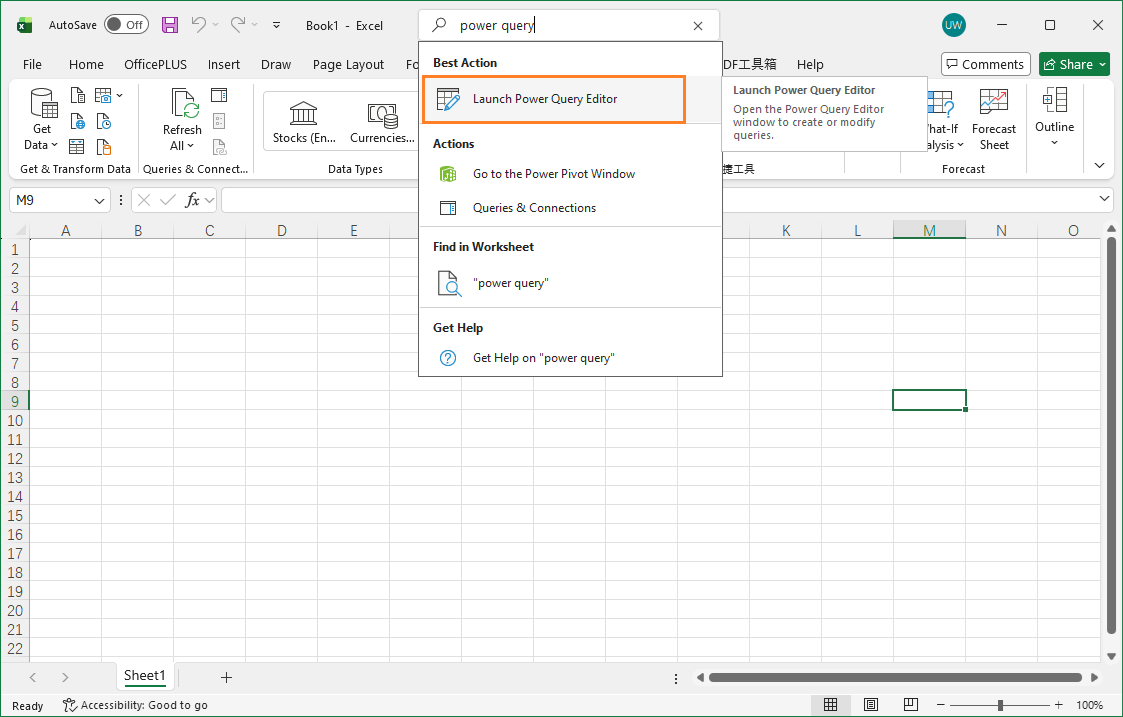
The easiest way to explore Power Query is to search for “Power Query” in Microsoft Excel, then select “Launch Power Query Editor.”
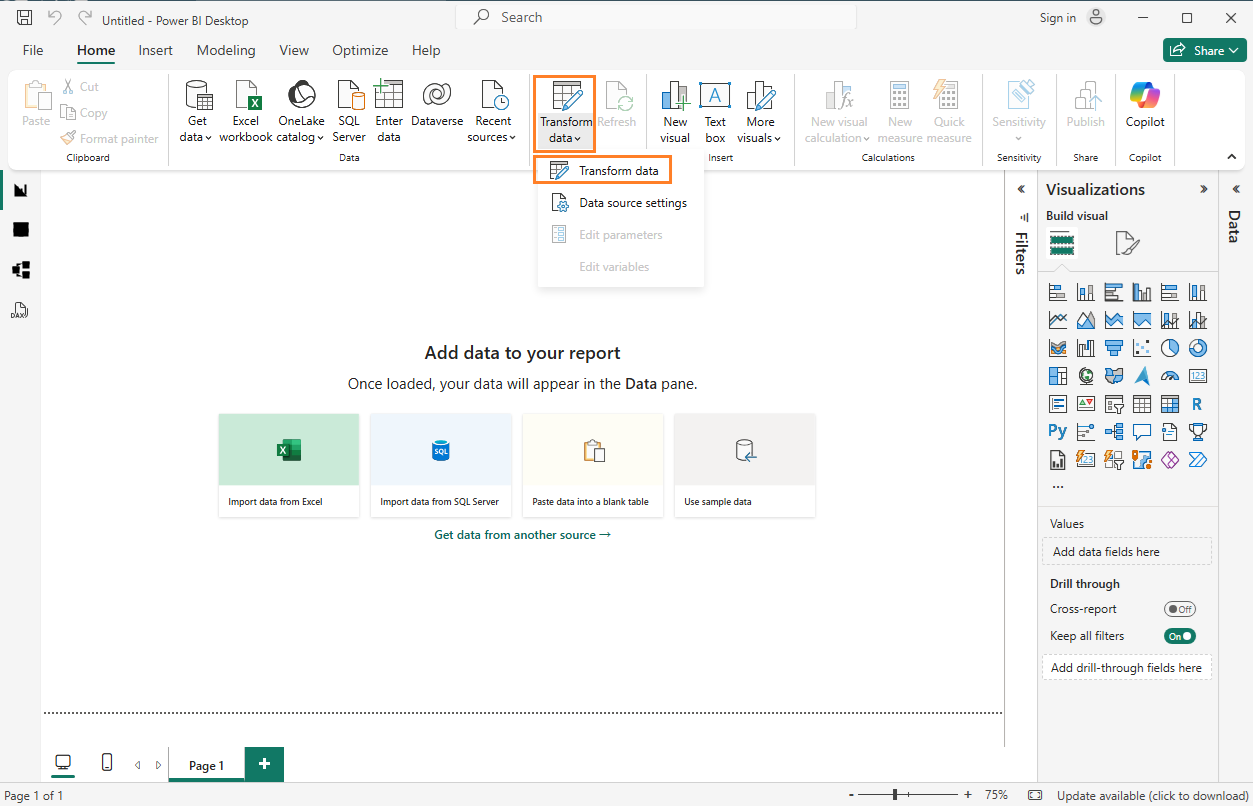
Alternatively, you can open the Power BI application and navigate to “Transform data” to access the Power Query Editor.
Most Power Query operations are performed within the Power Query Editor.
A Simple ETL Demo with Power Query#
For simplicity, this demo uses Excel only. Suppose you have the following table in an Excel workbook:
| Name | Status |
|---|---|
| alice | Normal |
| betty | Expired |
| charlie | Normal |
| dean | Normal |
| fred | Normal |
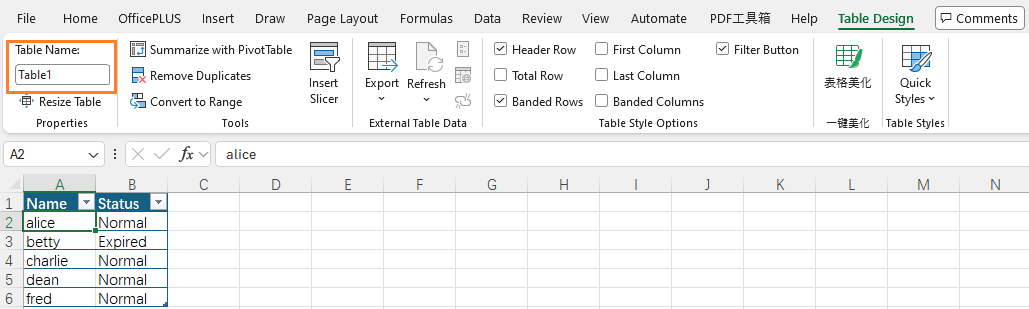
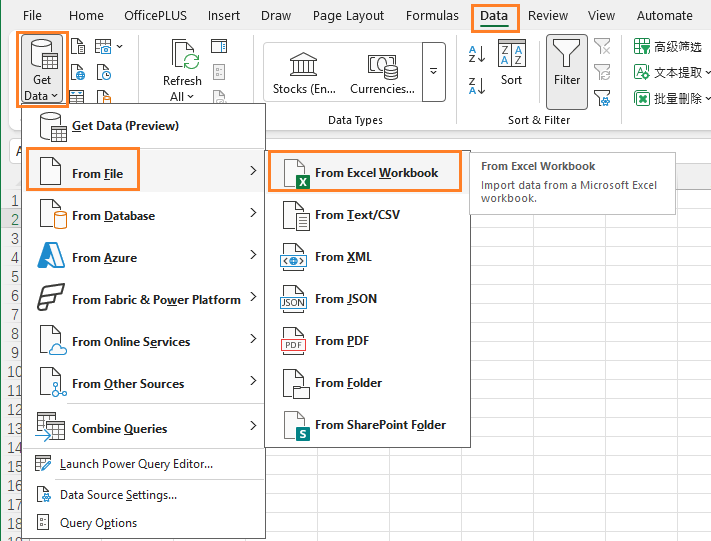
The goal is to extract all “Normal” records and convert the names to proper case. First, ensure the table is saved in an Excel file with the name “Table1.” Then navigate to Data → Get Data → From File → From Excel Workbook.
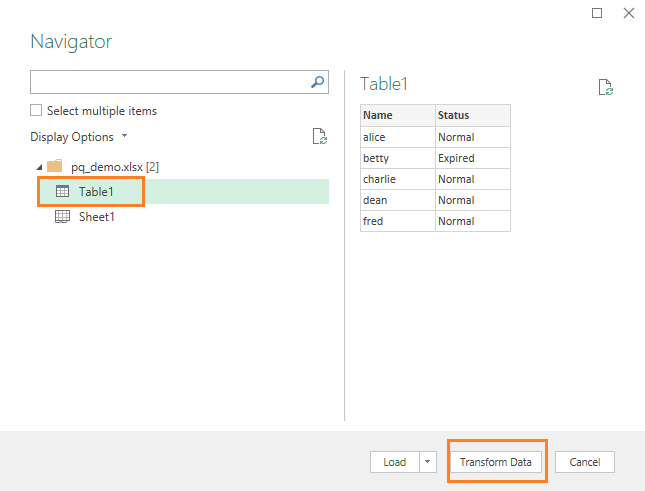
Select the Excel file containing the table. In the Navigator window, choose “Table1” and click Transform Data.
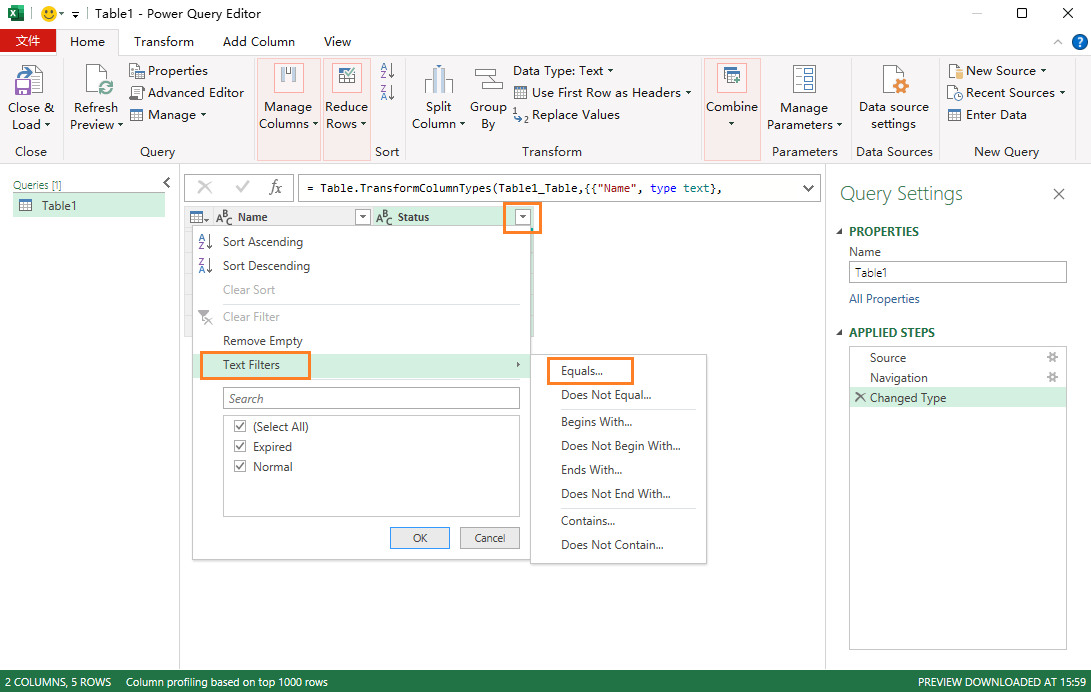
In the Power Query Editor, add a filter on the “Status” column:
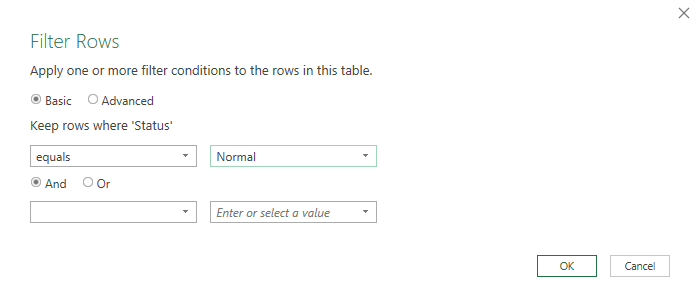
Set the filter to “Normal”:
Next, click on the “Name” column and select Transform → Text Column → Format → Capitalize Each Word.
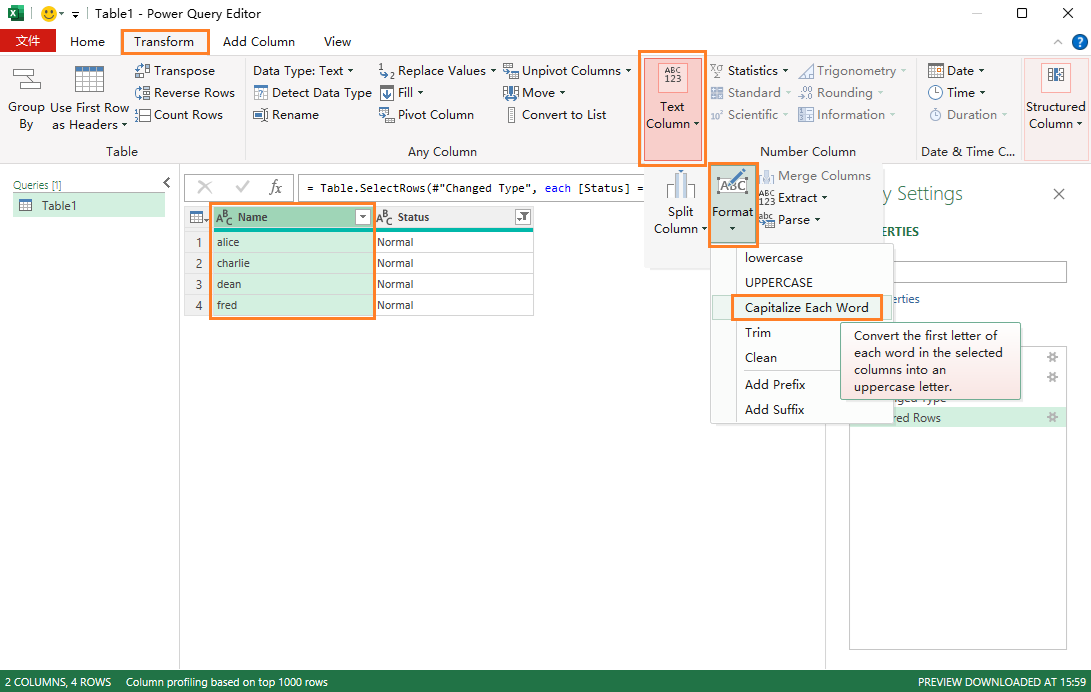
The result is rendered immediately. On the right side, each applied step for loading and transforming the data is listed sequentially.
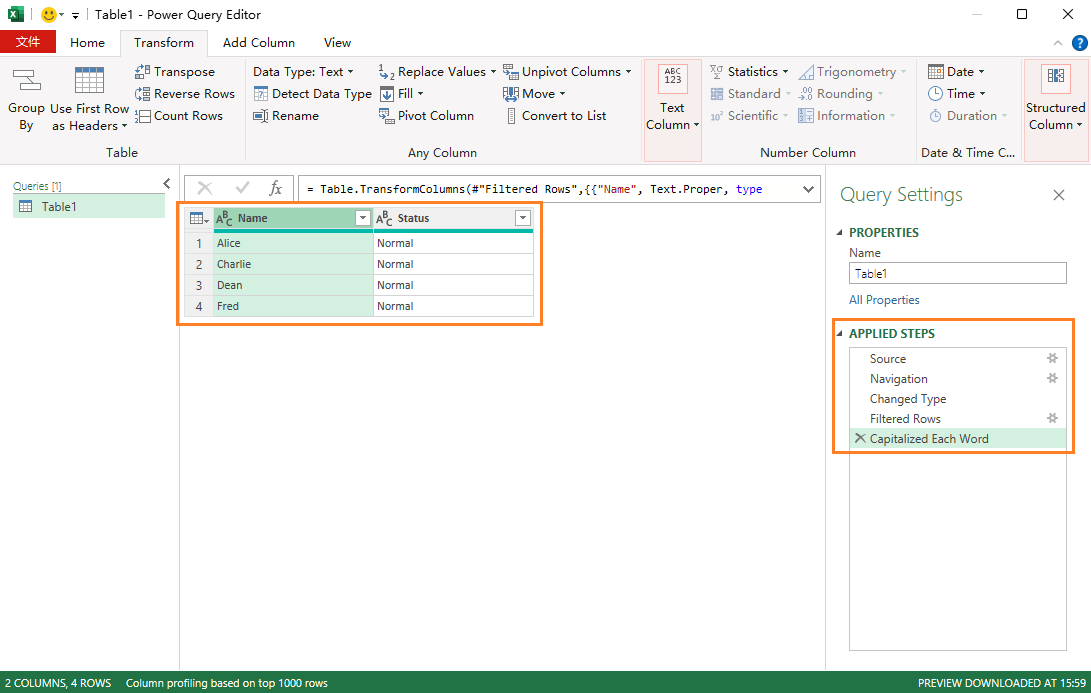
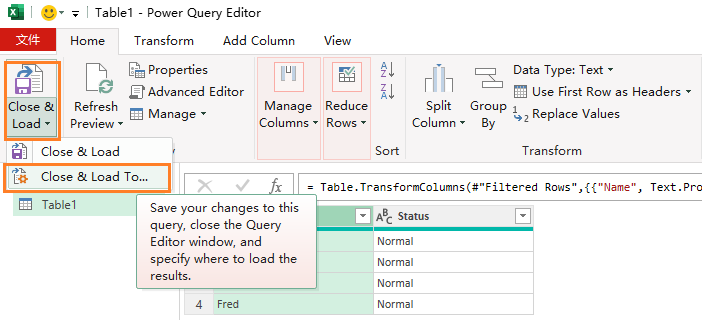
To load the result back to an Excel sheet, choose Home → Close & Load → Close & Load To….
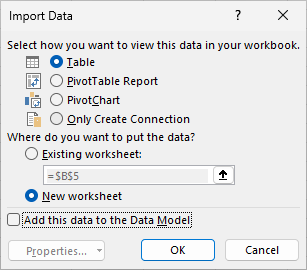
Select “Table” and “New worksheet,” then click OK.
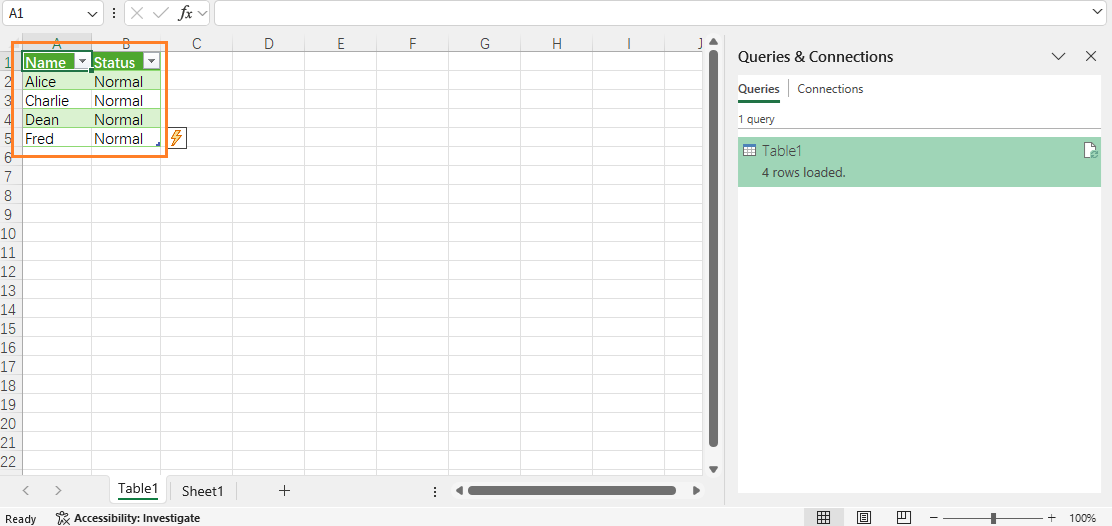
The result is loaded to a new worksheet in Excel.
Relead Data from Data Source#
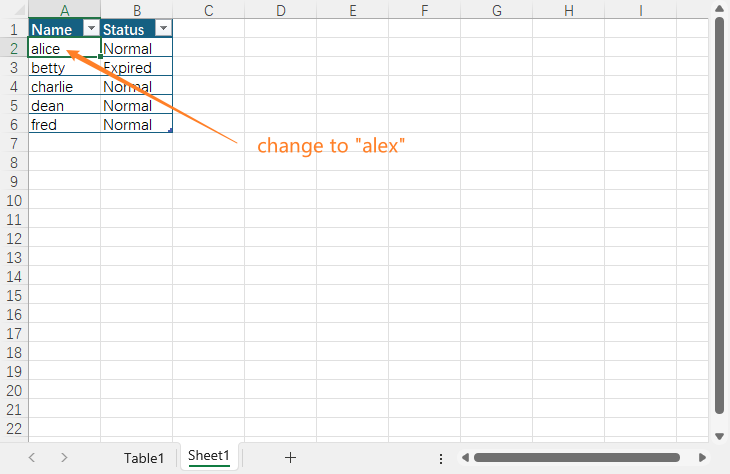
Change the data in the source table. For example, change “alice” to “alex” and save the change in the source file.
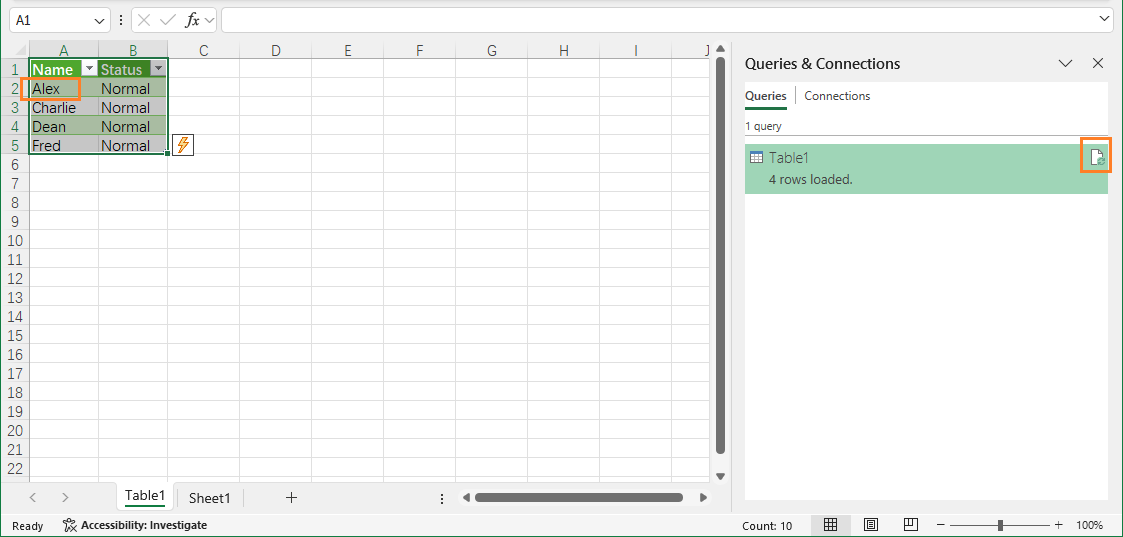
Click the Refresh icon to reload the data with the updated content.
M Code Under the Hood#
Search for “Power Query” in the search box and select “Launch Power Query Editor.”
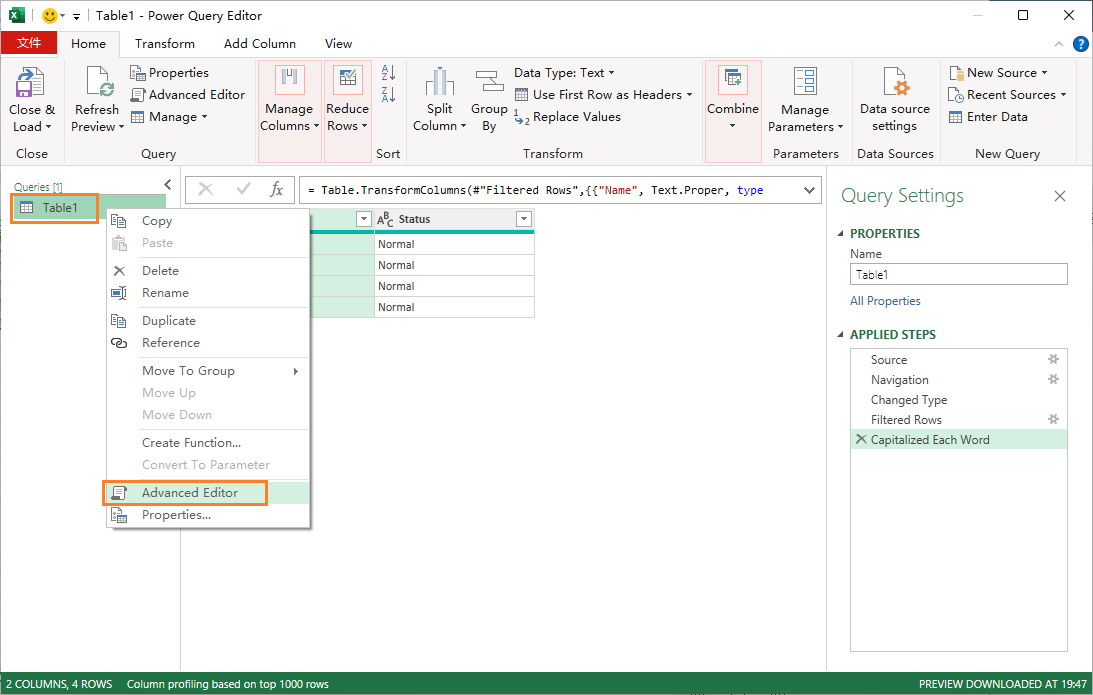
Right-click on the “Table1” query and select “Advanced Editor”.
The Advanced Editor displays the underlying M code generated by the GUI operations.
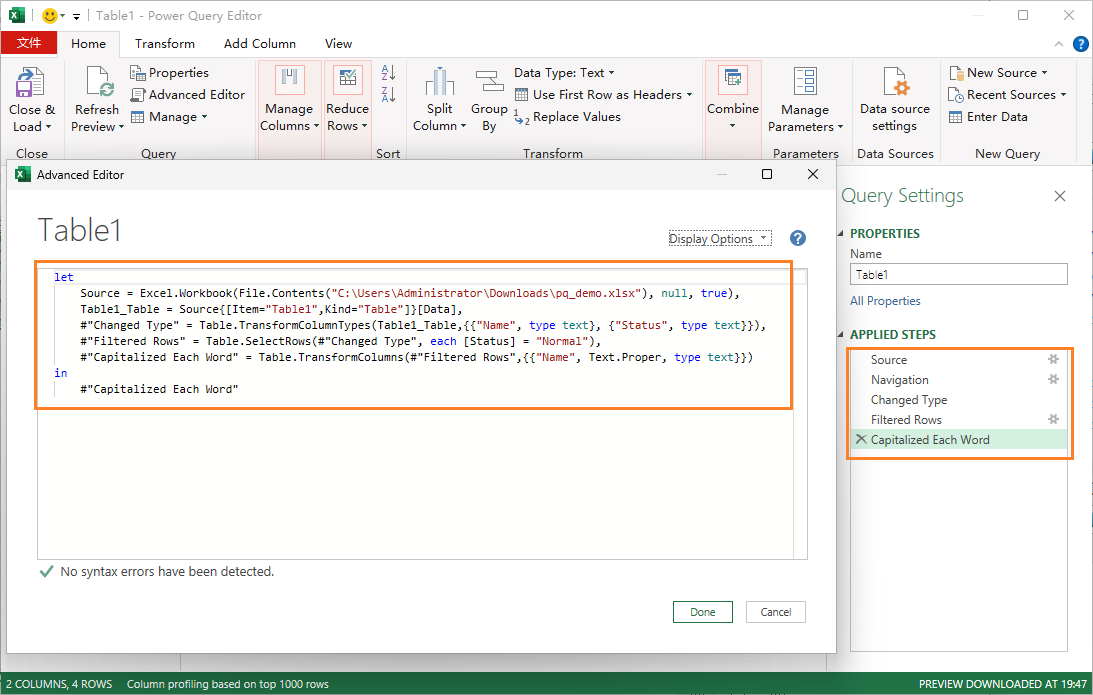
This is similar to how VBA code is generated when you record a macro in Excel.